You have a video idea. It might be a product teaser, a fashion TikTok clip, or just an anime character that you want to see move. But you don’t know how to animate, and you don’t want to spend hours learning a timeline editor. That’s the gap that PixVerse AI fills.
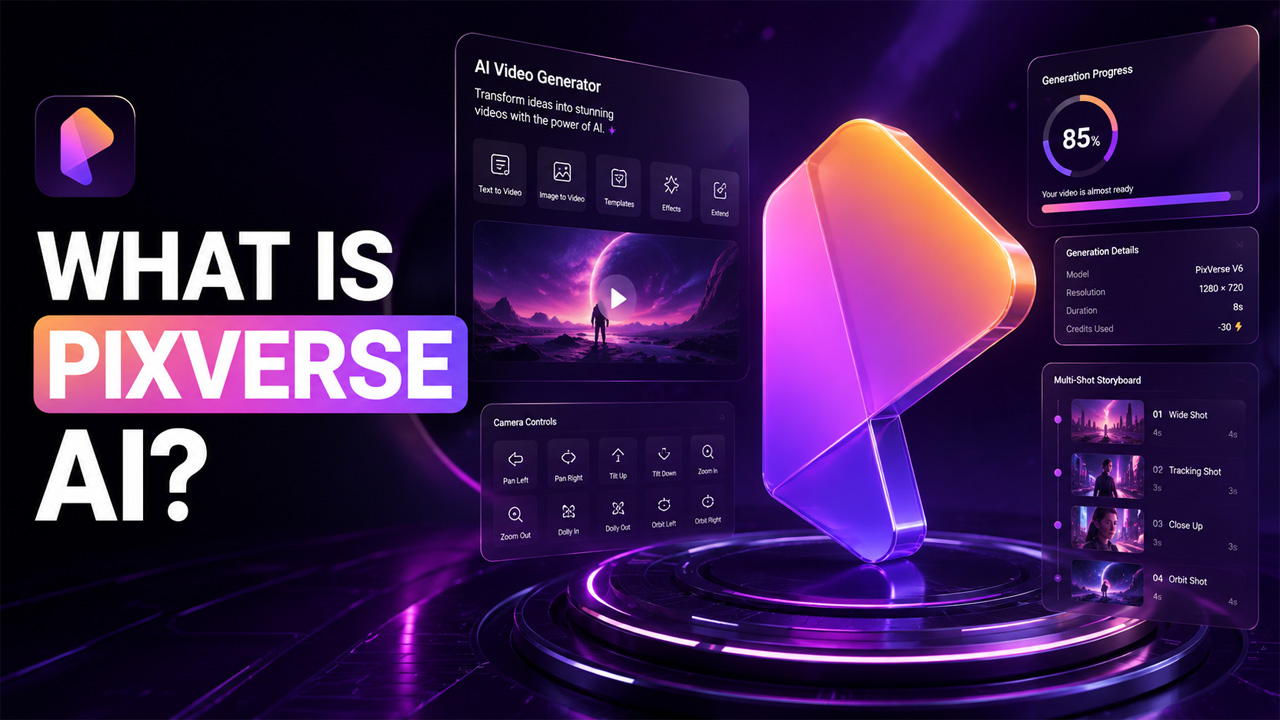
It’s grown fast, too. Its V6 model added native audio, 20+ camera controls, and multi-shot storytelling, while PixVerse R1 lets you direct scenes in real time. So, here’s the real question: is PixVerse chasing the best video quality, or just the fastest, easiest way in? That answer explains everything else about it.
What Is PixVerse AI?
PixVerse AI is a generative video platform that can turn written prompts, still images, and short clips into new videos with the help of diffusion-based AI models. You don’t need to shoot footage or edit frame by frame. You can just type out what you have in mind, or upload a picture, and the tool creates a short video around it. There are no cameras, timelines, or software to install.
It shows up in tens of thousands of monthly searches, which makes it clear that it’s becoming one of the go-to platforms for AI video generation.
How Does PixVerse AI Work?
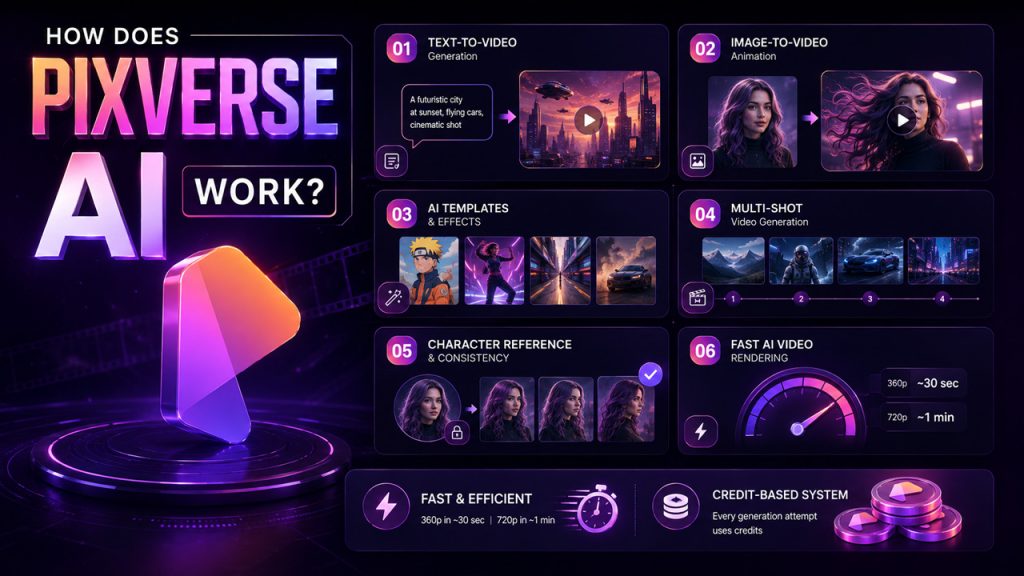
It works by turning your input into a short AI-generated video clip. Let’s deep dive into how that actually happens:
Text-to-Video Generation: First, you write a detailed prompt describing the scene, subject, lighting, and camera movement. After reading it, PixVerse generates a clip based on the description you provided. To get accurate results, be specific about what you want. The vague prompt gives you a vague result.
Image-to-Video Animation: Upload a still photo and PixVerse makes it move with camera zoom, facial movements, hair or clothing sway, and background shifts. This works especially well for product shots and portraits.
AI Templates and Effects: If you don’t want or can’t write a prompt, you can skip it entirely and choose from readymade effects like anime motion, dance animations, or zoom transitions.
Multi-Shot Video Generation: Instead of one clip, you can build a short sequence with different camera angles or scene beats. This is particularly helpful if you want to create mini-stories or product ads.
For a similar scene-planning approach outside PixVerse, Google Flow’s storyboard tool is another way to map out AI video sequences.
Character Reference and Consistency Tools: It comes with features like character reference and start-end control, which help retain the same face, outfit, or scene. They maintain consistency across multiple generations.
Fast AI Video Rendering: A 360p clip typically renders in around 30 seconds, and 720p takes about a minute, which is noticeably faster than a lot of competing tools.
One thing worth mentioning is that everything runs on credits. Every attempt to generate video, whether it succeeds or not, costs you credits.
Key Features of PixVerse AI
Before you start creating, it’s worth exploring the features that make PixVerse AI stand out.
- Text-to-Video Generation: It helps you describe a scene in plain, simple words and get a short clip built around it.
- Image-to-Video Animation: It brings a still photo to life with added camera motion, depth, and subtle expression changes.
- AI Templates and Viral Effects: You get pre-built templates and visual effects like dance transformations, fantasy effects, zoom edits, and anime-style motion, all ready to apply without writing a prompt.
- Cinematic Camera Controls: It offers you over 20 movement options, including tracking shots, orbit shots, dolly-ins, and slow zooms.
- Multi-Shot Storytelling: This feature helps you combine several scene beats into one video instead of a single static clip.
- Character Reference: It helps keep the same character’s face and outfit consistent across different generations.
- Native Audio and Lip-Sync: These features are added to the V6 model. They are pretty useful for creating talking avatars and short dialogue clips.
- Extend, Restyle, and Modify Tools: With this, you can stretch a clip a few extra seconds, change its visual style, or tweak specific details without starting over.
- API Access: It lets developers and businesses plug PixVerse into their own apps or automated workflows.
- Cross-Platform Access: PixVerse is available through the web, a mobile app, and the API. So, you are not really restricted to just one device.
Real users agreed that features genuinely work and visual style meets expectations, especially for short-form and stylized content. However, almost every review, including feedback posted on platforms like Trustpilot and Google Play, confirms the same friction. Credits disappear fast, especially when video generation doesn’t match the prompt, and you have to try again to get accurate results.
How to Use PixVerse AI: Step-by-Step Guide
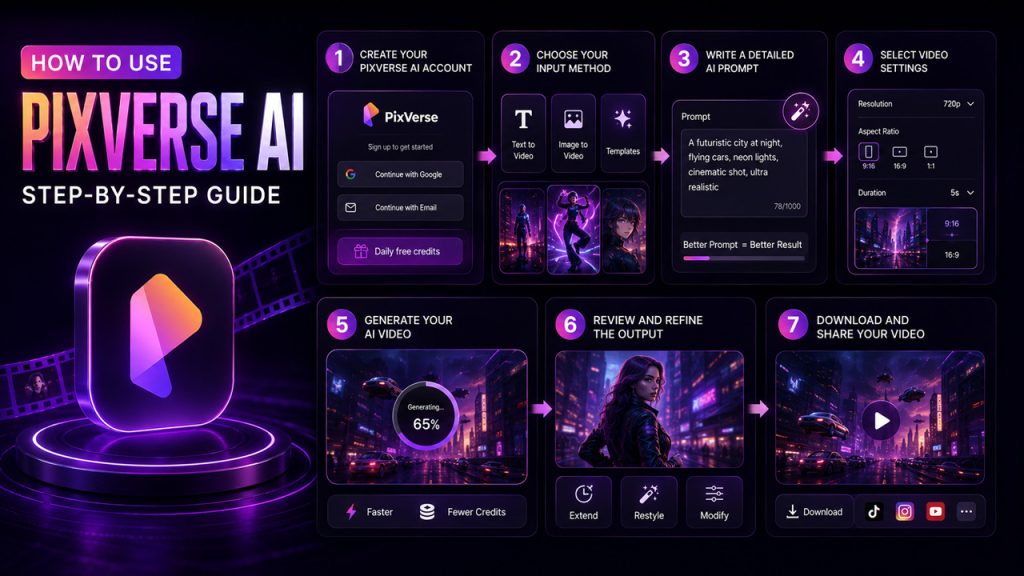
Getting started is surprisingly simple, and the entire process only takes a few steps.
- Create a PixVerse AI Account: Visit the PixVerse official website or mobile app and sign up. This gives you a free batch of daily credits to start experimenting with.
- Choose Your Input Method: Now pick if you want to start from a text prompt, upload a picture, or use a readymade template. Each path leads to a slightly different creative process.
- Write a Detailed AI Prompt: If you decide to use text-to-video, describe the subject, lighting, background settings, and camera movements. The more specific the prompt, the more accurate the results are.
- Select Video Settings: Choose the resolution, aspect ratio, and duration. If you want to create TikTok and Reels; vertical 9:16 works best while for YouTube, 16:9 is an ideal option.
- Generate Your AI Video: Click on generate and let PixVerse do its work. Lower resolutions are faster and cost fewer credits, which makes them a smart way to test an idea first.
- Review and Refine the Output: If you’re not satisfied with the result, use the extend, restyle, or modify tools to adjust it instead of generating again from scratch.
- Download and Share Your Video: Once you’re happy with the clip, export it for social media, ads, or wherever else it’s headed.
PixVerse AI Pricing Plans
PixVerse runs on a freemium and a credit-based model. Here’s a general breakdown of what you can expect, though exact numbers shift over time, so it’s worth double-checking the official pricing page before you commit.
| Plan | Estimated Price | Credits | Resolution | Best For |
| Free | $0 | Daily free credits | Lower resolution | Testing the platform |
| Standard | Around $9–10/mo | Around 1,200–5,000 credits | Up to 720p | Casual, occasional creators |
| Pro | Around $30/mo | Around 6,000–21,000 credits | Up to 1080p | Regular short-form creators |
| Premium | Around $60/mo | Around 15,000 credits | Up to 1080p | Heavy, high-volume users |
| Team / API | Custom pricing | Higher-volume usage | Depends on setup | Agencies, developers, businesses |
Things to keep in mind while using PixVerse:
- Text-to-video and image-to-video usually cost different amounts of credits
- Audio and higher resolutions eat into your credits faster too
The free plan is genuinely useful for testing, but it’s not built for anyone who makes videos regularly. Your credits will be used up faster once you start iterating prompts.
Best PixVerse AI Alternatives
PixVerse isn’t the only name in this space, and depending on what you need, another tool might actually fit better.
| Tool | Best For | Where It Wins |
| Runway | Advanced editing and production work | Deeper creative control, broader toolset |
| Kling AI | Realistic motion and cinematic scenes | Stronger realism and physics |
| Sora | High-end realism and narrative depth | More complex, narratively rich output |
| Pika Labs | Fun, experimental creator videos | Playful, flexible prompt experiments |
| Luma Dream Machine | Cinematic visual generation | Strong visual storytelling |
Pick PixVerse if speed and affordability matter to you. However, if realism or long-form storytelling is your priority; it’s worth trying out one of the alternatives before you invest money. If you’re also curious how other chatbots handle video, Grok AI’s video generation capabilities are worth a quick look too.
Conclusion
PixVerse AI isn’t the most advanced AI video available on the market. Once you make peace with this fact, it becomes a lot easier to appreciate what it actually does well. Whatever idea you have in mind, it quickly turns it into a usable short video in under a minute. It does not ask you to learn any technical or complicated things. However, there’s a catch. You’re trading control since you’re working with credits, short clips, and outputs that occasionally don’t hit the mark.
For creators making TikToks, Reels, product teasers, or quick creative concepts, that trade-off is easy to accept. For anyone chasing frame-perfect realism or long-form storytelling, it’s worth looking elsewhere first.
Frequently Asked Questions (FAQs)
Is PixVerse AI free to use?
Yes, PixVerse offers a free plan with daily credits, so you can test text-to-video and image-to-video features before paying for a subscription plan.
How long can PixVerse AI videos be?
PixVerse mainly creates short clips, typically between 4 and 15 seconds, depending on the model and plan you’re using at the time.
Does PixVerse AI support audio?
Yes, the V6 model added native audio and lip-sync support, which is useful for talking avatars, dialogue clips, and more engaging social content.
Why do PixVerse credits run out so fast?
Every generation costs credits, even failed ones. Higher resolutions, audio, and repeated attempts to fix a prompt all add up quickly.
Is PixVerse AI good for beginners?
Yes, it’s genuinely beginner-friendly. The prompt-based workflow, templates, and image-to-video tools don’t require any prior video editing experience.