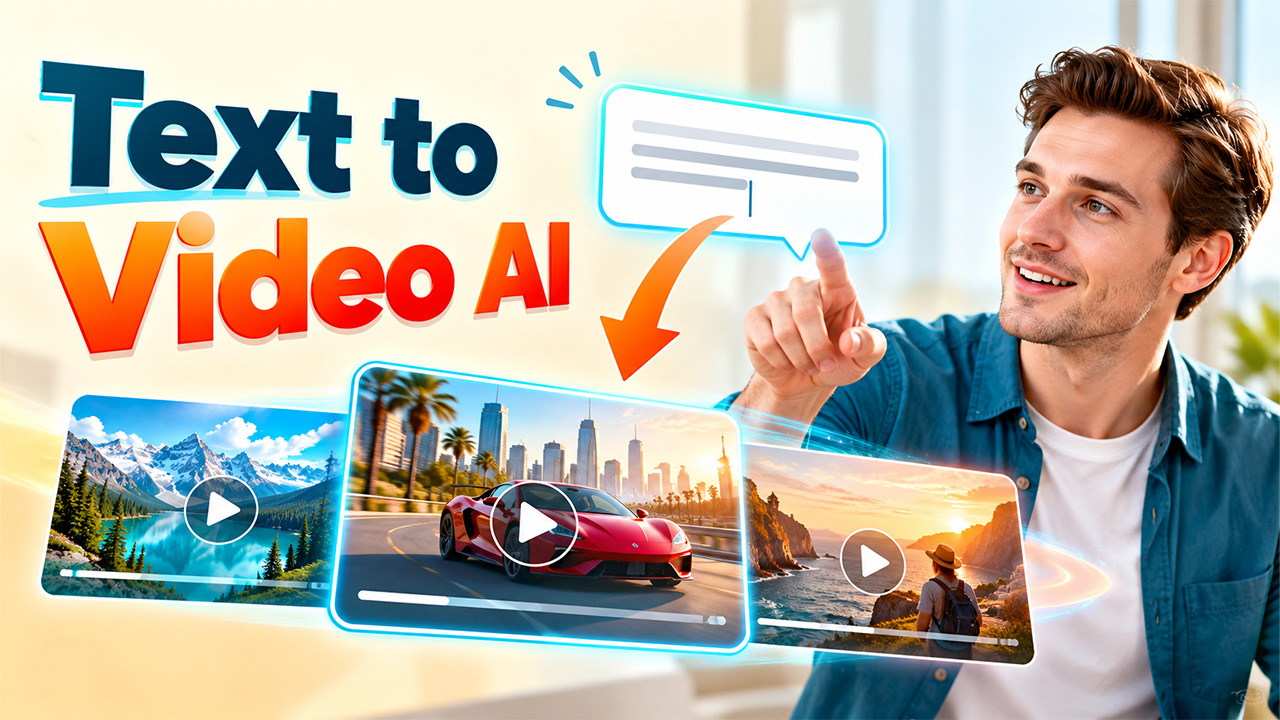
You have a video idea but no camera, no crew, and no editing skills. With text to video AI you can simply write a description and have a finished video in minutes. With rapid advancements in the tools this year, there are new versions every few months. This guide will show you how to use whichever tool you want by teaching you a workflow. This will give you an easy process to follow and a list of the best options for your specific requirements. Each step is simple and easy to follow. By the end, you will know how to create videos from text.
What is Text to Video AI?
A text to video AI tool will take a script or description and turn it into video. Most people aren’t aware that there are two types of tools.
The first type will generate new video from your prompt. Examples are Kling and Google’s Gemini Omni. This can create new scenes that would have never existed before, such as a rainy street at night. As each clip is new, it won’t look the same each time.
The second type will create a video using avatars, stock video or existing media. It will match up the video clips, voice and avatars to your text. Examples of this type are HeyGen and InVideo. This will give you a smooth and clear video with a presenter reading your script.
Both are text to video AI generators, but they are good for different purposes. Both don’t require a camera, actors, or set. The first type is good for short scenes and to create a certain atmosphere. The second type is good for explainers and presenters.
How to Choose the Right Text to Video AI Tool
To begin with, you have to decide if you want a moody cinematic look or a narrator before choosing an AI video generator.
Firstly, most tools have a limit on how long you can make a single scene. They usually last between 8-10 seconds. If you want a video longer than around a minute long, then you should go for a script-based tool. Alternatively, you can create multiple clips. Short clips are great for social media and scenes but not for an explainer video.
Secondly, do you want to have the same face or product in each scene? If you don’t have any reference images, then each scene can have a different face/product. Tools with a reference option will be best for you as you can copy the style from your images.
Thirdly, do you want the video to include voice and sound? Some tools produce silent clips. This can be edited afterwards but will require additional tools and take longer.
If you want moody scenes then go for a footage generator. If you want a narrator, then go for a script-based tool. If you want the same face/product in every scene, go for a tool with reference images. If you want sound included go for a tool that creates sound with the video.
The 5 Best AI Video Generator Tools in 2026
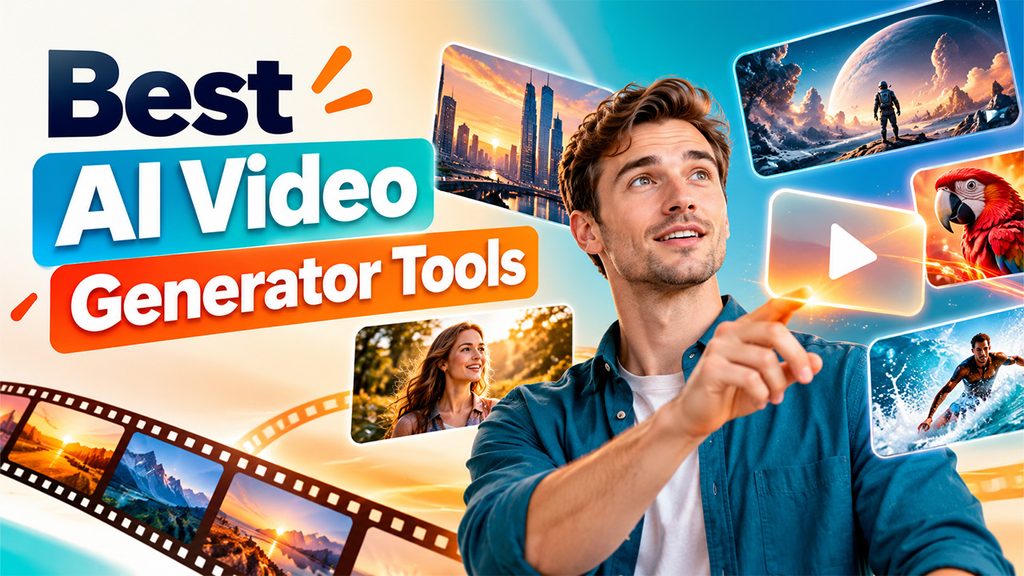
The list below shows the best tools for each purpose. Whilst there is no overall winner, there are three tools for creating new videos and two for script-based videos.
- Kling 4.0 – Best for longer clips and multi shot videos. This was launched on October 15 2026 and allows you to create single pass videos up to 30 seconds long. It also has a referencing feature where you can include up to 15 images, videos, subjects, and voices. This makes it ideal if you need a consistent character or product.
- Google Gemini Omni – Best for beginners and it includes audio. This tool combines text, image, audio, and video inputs to create videos up to 10 seconds long with audio included. It’s available to Google AI Plus, Pro and Ultra users on the Gemini app and Google Flow. This has replaced the Veo 3.1 model as the default video model on the Gemini app.
- Runway Gen-4.5 – Best for creative control. This tool allows you to create, edit and add visual effects to your videos all in one place. However, it will create 720p videos between 2-10 seconds long.
- HeyGen – Best for videos with a talking host. Simply write the script, choose an avatar and HeyGen will create a complete video. This is great for marketing videos or if you need videos in multiple languages. Synthesia is another popular option but is mostly used for company training.
- InVideo AI – Best for quick social media and YouTube videos using a script. This tool will create a complete draft from either one prompt or script. From here you’ll be placed into the timeline editor to improve your video. However, the main script to video feature only supports English.
Many free versions will include watermarks, only 720p export and no commercial licence. Be sure to check the terms and conditions. Sora has not been included as the app and API have been closed by OpenAI after an announcement on March 24, 2026.
How to Write a Prompt That Works Like a Shot Brief
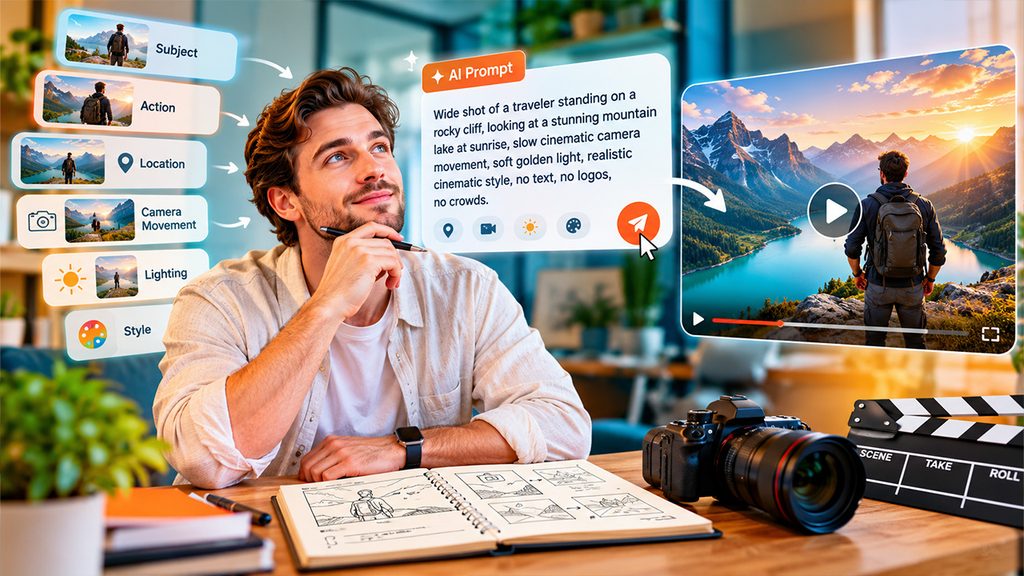
Prompting a video using very filmic language will give you the best results. Be specific with your prompt. Include what the subject is, what the action is, where it is, how it is shot, what the lighting is and what the style is. Also include a couple of negatives. Keep it simple and straightforward.
Include what you don’t want in the video. For example “no logos” or “no crowds”. Don’t ask for the text to be clear as text such as signs, labels and documents can often still be blurry in AI videos. Here is an example of a prompt you can copy and adapt for your own idea.
Slow dolly-in on a steaming ceramic mug of coffee on a wooden café table beside a rainy window, soft morning light, shallow depth of field, warm film-style color grade, quiet rain ambience, no text, no people.
The subject is the mug. The action is the steam. The location is a café table with a rainy window. The camera movement is a slow dolly-in and the depth of field is shallow. The lighting is soft morning light and the colour grade is warm. The text and people have been excluded. The gentle rain sounds tell the tool what audio to include.
Most importantly, stick to one subject doing one action. Having multiple actions in one clip will often cause distortion and confusion. Keep your second idea for the next clip.
Final Thoughts
Follow these steps in the right order. Choose your tool. Write a short prompt with one action and one topic. Create a short video, keeping changes to only one element. Review your clips with audio on and off. Add a description to your video, to avoid confusion.
You will need to come up with an idea for your video. Before writing your prompt think about what you want your viewer to learn or feel. If you cannot explain your point in one sentence, your prompt isn’t ready.
Frequently Asked Questions (FAQs)
-
What is text to video AI?
A text to video AI is an AI video maker that turns your written prompt into a video.
-
What is the difference between the two types of tools?
One type generates new footage from a prompt, the other creates videos from scripts using avatars and stock clips.
-
How long can a text to video generator make a video?
Most clips are 2-10 seconds, but Kling 4.0 makes 30-second clips and script tools like InVideo can make longer videos.
-
Can I keep the same character or product in every scene?
Yes, use an ai video generator with reference images like Kling 4.0 to create videos from text with consistent characters.
-
Do prompt to video tools include audio?
Some do like Google Gemini Omni, while others create silent clips that need audio added later.