
If you have a mental visualization of an image to create, you can spend hours trying to create that image. AI art generation tools help you speed up the process of creation.
While some AI generators may be as simple as providing a prompt box to fill in, SeaArt AI provides everyone with more complex solutions. You can also start from a prompt text, an image, or use a ready workflow if you don’t want to develop your idea on your own, for a variety of purposes.
What Is SeaArt AI?
It is a creative AI platform for generating and editing images, creating videos, and exploring various AI models. You can access it using a browser or a mobile application, according to what suits your convenience. The platform also comprises a community of users for sharing works, models, and workflows.
What Can You Create?
- AI-generated illustrations and realistic images
- Character designs and concept art
- Short AI videos from text or images
- Edited and upscaled images
- Images based on community models and LoRAs
- Creative variations from an existing image
This range makes it useful for social media graphics, product visuals, character concepts, story scenes, and personal experiments. You can also compare it with some of the best free AI image generators available.
Key Features of SeaArt AI
The platform has a lot going on, but you don’t need to use every feature to get started.
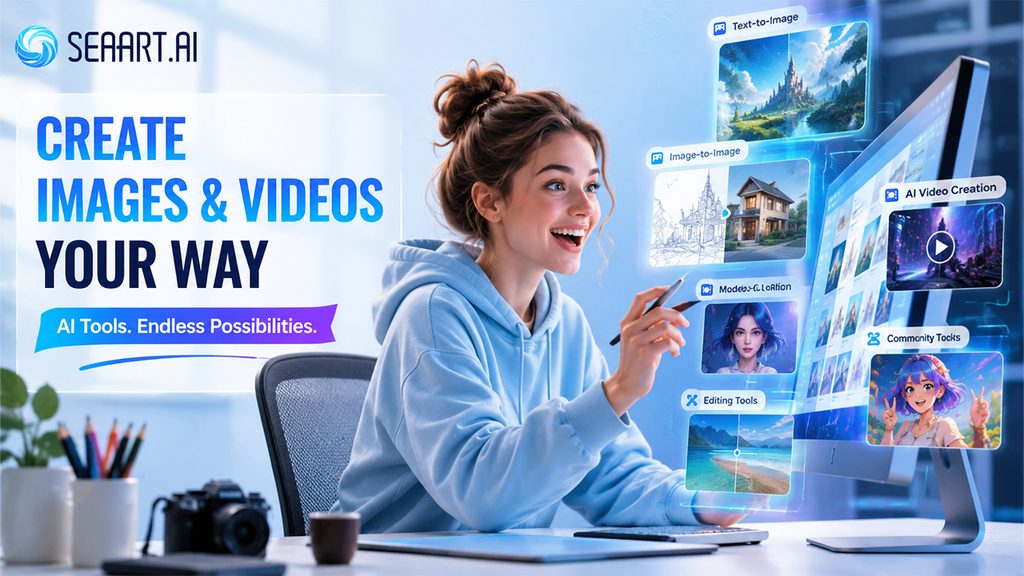
- Text-to-Image Generation
You enter a description of the image you want, choose a model, and generate the result. Different models can produce very different styles, so changing the model can matter as much as changing your prompt.
- Image-to-Image Generation
Have a rough sketch or an existing picture? Upload it and use it as a reference for a new result. This gives you more control when a text description alone doesn’t capture the composition you want. You can also compare its image-to-image features with what Raphael AI offers.
- AI Video Creation
You can turn text or still images into videos. The platform supports text-to-video and image-to-video options, along with a range of video models. If you’re mainly interested in AI video generation, you can also read our article on PixVerse AI and see how it handles text-to-video and image-to-video creation.
- Models and LoRAs
One of the more interesting parts is its large model library. The official model page currently lists more than 700,000 community image models, including models based on FLUX, Stable Diffusion, and other systems. You can also find LoRAs for more specific styles or subjects.
- Editing and Enhancement Tools
You can work on an image after generating it instead of starting over. Available tools include image upscaling, background removal, AI erasing, filters, and other editing options.
- Community Creations
You can browse work made by other users and use those creations to find ideas. The Clone & Try feature also lets you recreate certain styles or workflows from community posts, which can help when you’re still learning how prompts and models work.
SeaArt AI Pros and Cons
| Pros | Cons |
| Large selection of models and LoRAs | The number of choices can confuse beginners |
| Supports image and video creation | Some advanced tools take time to learn |
| Offers image editing tools | Results can vary between models |
| Has a large creator community | The interface can feel busy |
| Works on web and mobile | Advanced usage can consume credits or require paid access |
| Includes workflows for more control | You need to check usage rights for community models |
The platform also offers workflows that give you more control over image and video generation, although those options can take longer to learn.
SeaArt AI Models and LoRAs: How to Choose the Right One
One of the most useful parts of SeaArt AI is the ability to experiment with different models and LoRAs. However, having many options can also make the platform feel overwhelming when you are just getting started. Choosing the right combination depends on the type of image you want to create and how much control you need over the final result.
Start With the Visual Style
Think about the appearance you want before selecting a model. A realistic image, anime character, cinematic scene, product visual, and artistic illustration may all require different approaches.
Instead of testing models randomly, start by identifying the visual style that matches your project. This can reduce unnecessary generations and make it easier to compare results.
Understand What LoRAs Add
LoRAs can be used to influence particular characteristics of a generated image. Depending on the available model and LoRA, they can help emphasize a certain style, subject, character appearance, or other visual characteristics.
They are especially useful when the base model produces an image that is close to your goal but still needs a more specific visual direction.
Test One Change at a Time
When experimenting with models and LoRAs, changing several settings at once can make it difficult to understand why the result changed. A better approach is to keep the prompt relatively consistent while testing one model or LoRA at a time.
This makes comparisons easier and helps you identify which combination works best for your particular project.
Don’t Assume a Popular Model Is Always the Best
A model with many users or community creations is not automatically the right choice for every prompt. Generation quality depends on the type of content you are creating, the prompt, reference material, and other settings.
The best model is the one that consistently produces results close to your intended style. If you are comparing SeaArt with broader multimodal AI platforms, Gemini AI can also be explored for workflows that extend beyond dedicated image generation.
Check Usage and Licensing Information
Community-created models and LoRAs can have their own usage conditions. Before using generated content commercially, review the applicable information associated with the model, LoRA, or other resources involved in the generation.
Taking a few minutes to understand these conditions can help avoid problems when an image is being used for business, advertising, or other commercial projects.
Overall, model selection becomes much easier when you approach it as an experimentation process. Start with a suitable base model, make controlled changes, and keep track of combinations that produce useful results.
How Does SeaArt AI Work?
The basic process is easier than the number of settings makes it look.
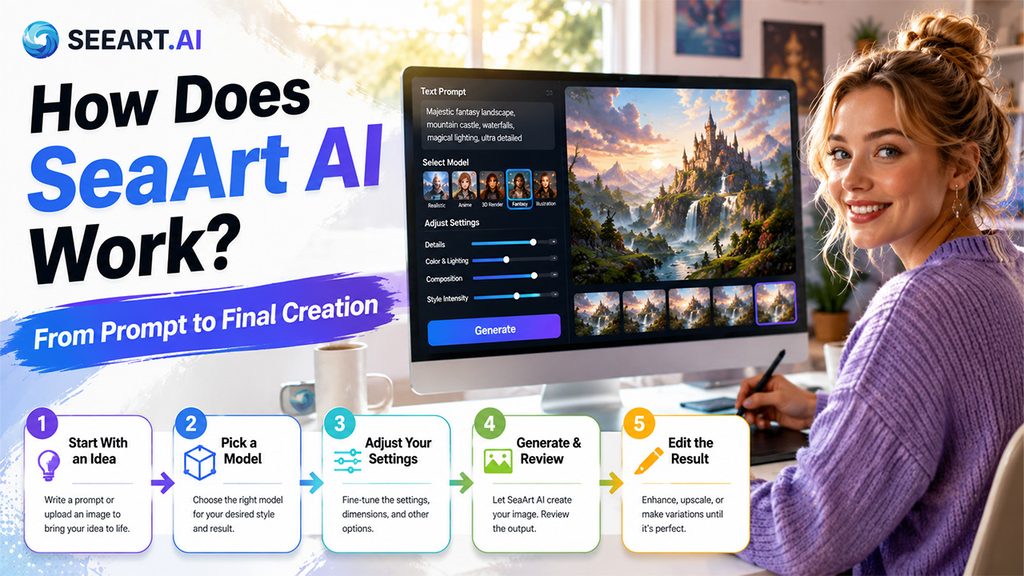
Step 1: Start With an Idea
Write a prompt that describes the image or video you want. You can also upload an image when you want to work from an existing visual.
Step 2: Pick a Model
Choose a model based on the type of result you want. A realistic model may suit a product scene, while an anime-focused model makes more sense for character art.
Step 3: Adjust Your Settings
Depending on the tool, you can change generation settings, image dimensions, model options, or other controls. Advanced users can also build or use workflows for more precise results.
Step 4: Generate and Review
The platform processes your prompt, reference material, model, and selected settings. You then review the output and decide whether it needs another attempt.
Step 5: Edit the Result
If something looks off, you can use available editing or enhancement tools instead of starting from zero. You might upscale the image, remove an unwanted element, or create another variation.
Quick Steps to Download the App
You don’t actually need to download anything if you use the web version. If you prefer creating from your phone, the official app is available for Android and iOS.
On Android
- Open the Google Play Store.
- Search for the official SeaArt app.
- Check that SeaArt is listed as the developer.
- Tap Install.
- Open the app and sign in.
The current Android listing shows more than 5 million downloads and identifies the app as an AI image and video creation tool.
On iPhone or iPad
- Open the App Store.
- Search for the official SeaArt app.
- Select the official listing.
- Tap Get.
- Open it and sign in.
You can also use the web version if you don’t want another app on your phone. The official tools page provides links to its mobile apps.
How to Create Better Images With SeaArt AI
Getting a good result from an AI image generator is not always about writing the longest possible prompt. The quality of the output can depend on the model, visual direction, reference image, and settings you choose. A more focused approach can make the generation process faster and easier to control.
Describe the Important Details
Start by identifying the elements that matter most in the image. Include the main subject, environment, action, composition, lighting, mood, and visual style when those details are important to the result.
For example, instead of simply asking for a “woman in a city,” you could describe the person’s appearance, the type of street, the time of day, the lighting, camera perspective, and overall atmosphere.
Choose the Model Before Fine-Tuning the Prompt
A detailed prompt cannot always compensate for an unsuitable model. If you want a particular visual style, begin by selecting a model that is appropriate for that type of image.
Once you find a model that produces results close to your goal, you can refine the prompt rather than repeatedly switching between unrelated models.
Use Reference Images When They Add Value
Text descriptions are useful when you want to create something from scratch, but reference images can provide additional visual direction. They can help communicate composition, pose, color relationships, or the general appearance you want to explore.
However, a reference image should be treated as guidance rather than a guarantee that every detail will remain unchanged.
Make Small Adjustments Between Generations\
If the first result is close to what you want, avoid completely rewriting the prompt. Change one or two elements at a time, such as the lighting, background, pose, camera angle, or visual style.
This makes it easier to identify which changes improve the result and prevents you from losing elements that were already working well.
Save Successful Workflows
When you find a combination of prompt, model, settings, and other options that consistently produces good results, keep a record of it. Saving successful workflows can make future projects faster and help maintain a similar visual direction across multiple images.
This can be particularly useful for creators producing social media graphics, character artwork, story scenes, or a series of related visuals. Users exploring AI tools for education and classroom workflows can also look at Magic School AI as a separate option designed for a different type of AI use case.
Review the Image Before Publishing
AI-generated images can still contain unexpected details, distorted elements, or inconsistencies. Always inspect the final image before using it publicly or commercially.
If something looks wrong, try a focused adjustment or use an available editing tool instead of immediately starting the entire creation process again.
The most effective approach is usually iterative: create a first version, identify what needs improvement, make a targeted change, and repeat until the image matches your intended result.
Conclusion
AI art tools allow creatives to play around without having to spend time making every piece from zero. SeaArt AI takes it to another level by allowing image generation, video production, model selection, editing tools, and community-made works to coexist on the same platform. Unlike platforms such as Janitor AI, which focuses more on AI-powered character interactions, SeaArt AI is primarily designed for visual content creation.
This can help you experiment with your creativity, but it may also seem like too many options at the start. Therefore, you can start with a simple image prompt and check how different models affect your results.
Frequently Asked Questions
Is the SeaArt AI free to use?
You can access the platform without immediately paying for a subscription, although usage limits, credits, and access to some features can vary by plan and tool.
Can SeaArt AI make videos?
Yes. The platform supports text-to-video and image-to-video creation, along with a range of video models and tools.
Can I use generated images commercially?
That depends on the specific content, model, and applicable license or usage terms. Check the rights attached to community models and creations before using them in paid work or other commercial projects.
Is SeaArt AI suitable for beginners?
Yes, especially if you start with basic image generation. The large model library and advanced controls can take longer to understand, so it’s better to learn one workflow before trying everything at once.