
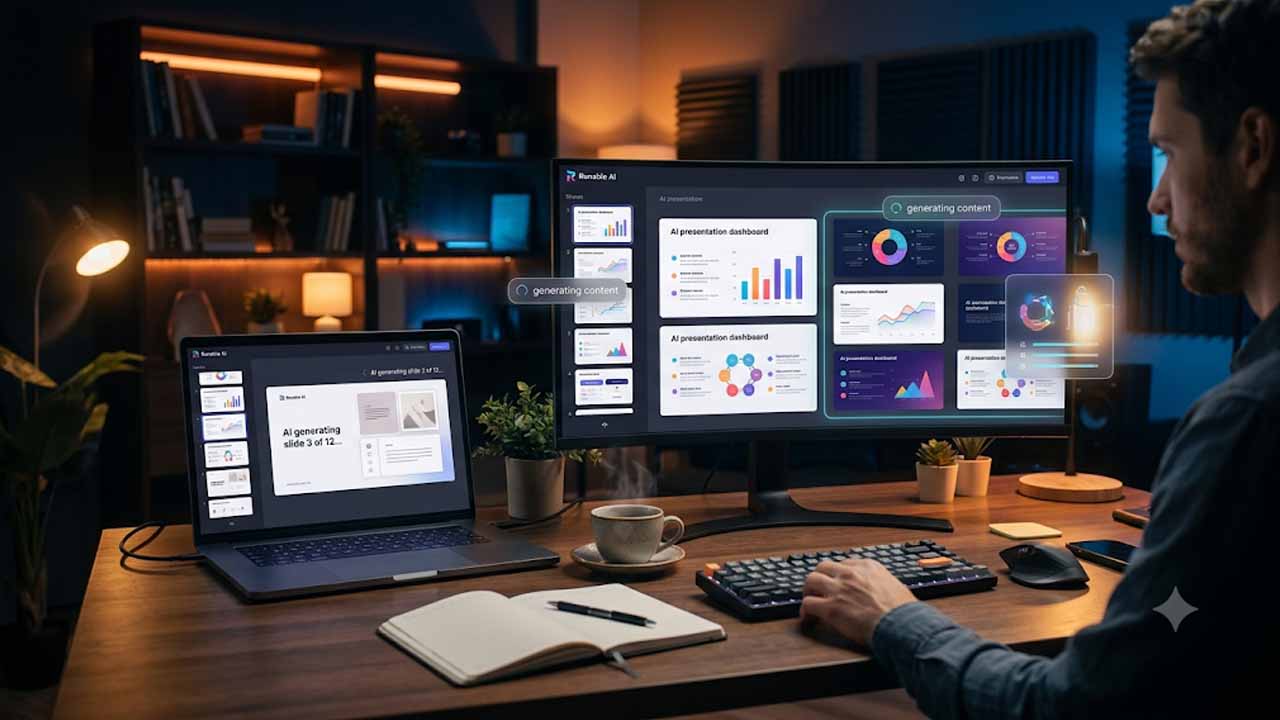
You have a meeting on Friday, a blank slide deck, and not nearly enough time. Sound familiar? That is exactly the moment a Runable AI presentation can save your afternoon. Instead of dragging text boxes around, you describe what you need in plain language and let the tool build the deck for you. In this guide, we will walk through what Runable is, how to get started, what the slides look like, and where the limits are, so you can decide whether it fits the way you work.
What Is Runable and How Does It Handle Slides?
Runable is a general-purpose AI agent that creates slides, websites, reports and videos. Every Runable AI presentation starts the same way: you open the presentations section, explain what the deck is about, and the agent plans the structure, writes the content and applies a design. It feels less like browsing a template library and more like briefing a capable assistant who already knows how decks are supposed to flow. If you want the bigger picture of the platform, our guide to runable ai covers it in detail, including what else it can build beyond slides and who it suits best.
Runable Login: How to Sign In
Getting in is simple. Head to the Runable website and sign in with a magic link sent to your email, or use your Google, Apple or Microsoft account. There is nothing to download, because everything runs in your browser. After signing in, you land on a dashboard with an input bar and quick shortcuts for slides, videos and websites. For bigger projects, Runable suggests Plan Mode, so the agent maps out the work first, which is where every Runable AI presentation begins.
How to Create a Presentation, Step by Step
Here is the process most people follow:
- Open the presentations area from the main interface.
- Describe your topic, your audience and the goal of the deck. The more specific you are, the better the first draft.
- Choose how long the deck should be. Runable’s documentation mentions decks of roughly four to twenty-four slides.
- Pick a style or let the agent choose one, then start the generation.
- Review the result slide by slide and note what you want to change.
A Runable AI presentation works best with a strong prompt. Instead of typing “make a sales deck,” try something like “create a ten-slide pitch for a local bakery launching online ordering, aimed at small business investors, with a clean, warm design.” That one sentence gives the agent a topic, a length, an audience and a mood. Treat the first output as a draft, just as you would with a new colleague, and expect a couple of rounds of tweaks before it feels like yours.
Is There a Runable Free Plan?
This is the question everyone asks, and the honest answer is that it depends on where you look. Some pages describe daily credits that cover basic slides, websites and images. Other help pages say the free tier is limited to chat, with creative features on paid plans starting around twenty-five dollars a month. Runable’s own pages do not fully agree, so open the live pricing page and check what is included today, since plans change quite often.
Editing and Exporting Your Runable AI Presentation

Once the deck is generated, you are in control. You can click into slides and edit text, move elements or resize content yourself, or ask the agent to make changes in plain language, such as shortening a slide or switching the tone. If a slide needs a custom image, our Nano Banana 2 guide is a good starting point. When you are happy, export to PowerPoint, PDF or Google Slides. PowerPoint suits offline use, PDF is best for sending, and Google Slides works well for team collaboration.
Runable Login Not Working? Quick Fixes
Nothing is more annoying than getting stuck at the door. If your sign-in email never arrives, check your spam folder first, since magic links sometimes land there. If that fails, try a different browser, clear your cookies, or sign in with Google, Apple or Microsoft instead. If you hit a wall mid-project, credits are the usual culprit. Complex requests cost more, so test with a short deck first. Keep an eye on your balance if you rely on the Runable free allowance, because it can disappear faster than you expect.
Who Should Use It and Who Might Not
Runable suits freelancers, founders, teachers and marketers who need a decent deck quickly and do not want to start from a blank page. It also works well when you need several versions of the same message for different audiences. On the other hand, if you need pixel-perfect brand control, heavy data tables or a very specific corporate template, you will likely spend time adjusting the output. In such cases, an AI Presentation can serve as a quick first draft that you refine manually
In those cases, a Runable AI Presentation is best treated as a fast first draft that you refine by hand. Always read every slide before presenting, because AI can write confidently and still get a fact or figure wrong. A quick fact-check of names, dates and numbers takes minutes and protects your credibility in the room. Treat the output the way an editor treats a first draft: keep the structure, sharpen the wording, and cut anything that does not serve your main point. Your audience should hear your voice, not a generic script.
Pair Your Runable AI Presentation With Other Tools
A deck rarely lives alone. You might need written copy to fill it, custom visuals to lift it, or a short video to promote it. Our AI content generator can help you draft slide copy and speaker notes, and our guide on how to create AI videos from text shows how to turn your key message into a clip. Using one tool for structure and others for extras keeps each part focused.
Final Thoughts
If you have been dreading your next deck, try this. Create your Runable login, open the slides shortcut, and test it with a small, low-stakes presentation first. Keep your prompts specific, check the pricing page, and edit the draft in your own voice. Start small, learn how the credits behave, and scale up once you trust the results. Block out thirty minutes, pick a real topic you already know well, and compare the draft with what you would have built yourself. That comparison shows where the tool saves time and where it does not. If it is available to you today, the Runable free option is the cheapest way to find out whether this workflow suits you. Over time, you will learn which prompts give you usable drafts and which slides need a human touch. Build a small library of prompts that worked, reuse your best structures, and keep a checklist for fact-checking before every meeting. Share your best decks with your team so everyone starts from the same structure, and note which prompts gave you the cleanest results. Do that consistently, and a Runable AI presentation stops being an experiment and becomes a dependable part of your weekly routine, saving hours that you can spend rehearsing. Give it a try this week, and let your next deck surprise you.
Frequently Asked Questions (FAQs)
-
How does a Runable AI presentation work?
You describe your topic, audience and goal in plain language, and the agent plans the structure, writes the content and applies a design. You then review the draft, edit it directly or ask for changes, and export it when you are happy.
-
Is Runable free to use?
It depends on which page you read. Some pages describe daily free credits that include slides, while a help page says the free tier is limited to chat. Check the live pricing page for the current allowance before you start a big project.
-
How do I complete the Runable login?
Sign in with a magic link sent to your email, or use your Google, Apple or Microsoft account. If the email does not arrive, check your spam folder, try another browser or clear your cookies.
-
Can I export a Runable AI presentation to PowerPoint or Google Slides?
Yes. Runable's documentation lists PowerPoint, PDF and Google Slides as export options, so you can finish your edits in whichever tool your team already uses.
-
How many slides can Runable create at once?
Runable's documentation describes decks of roughly four to twenty-four slides. For longer decks, it is usually easier to build the presentation in sections and combine them afterwards.